
Privacy Display is a standout feature that is exclusive to the Galaxy S26 Ultra and makes your screen harder to read from the side, keeping your content private from people around you.
Samsung has given it a decent set of built-in customization options. But if you want more control over when it automatically turns on and off, you need to be using Samsung's Modes and Routines app.
What customization does Privacy Display offer out of the box?
Before getting into Routines, it is worth knowing what you can already do without them. Privacy Display has a few built-in activation conditions you can configure from the Settings > Display > Privacy Display > Conditions for turning on menu:
- Apps: You can select specific apps that will automatically trigger Privacy Display when you open them. Banking and messaging apps are the obvious candidates here.
- PIN, pattern, and password entry: Privacy Display activates whenever you type in a passcode or unlock a secured app, then turns off again once you are past the lock screen.
- Notification pop-ups: The privacy effect is applied only to incoming notification banners, while the rest of the screen stays visible as normal.
These options cover most everyday situations. But they are all based on what you are doing on the phone, not on where you are or what is happening around you. That is where Modes and Routines comes in.
What is Modes and Routines?
Modes and Routines is a Samsung app that lets you automate your phone's behaviour based on conditions like your location, Wi-Fi connection, time of day, or battery level. You can find it by searching for it in Settings, opening the app directly from your app drawer, or long pressing the Modes button in the quick panel.
A Routine is made up of two parts: an “If” condition that triggers the routine, and a “Then” action that the phone carries out when that condition is met. For Privacy Display, you are setting up routines where the condition is something like “I left home” and the action is “turn on Privacy Display.” As soon as the condition clears — like when you get back home — Privacy Display turns off on its own.
How to turn on Privacy Display when you leave home
This is probably the most useful routine you can set up. It means Privacy Display is always off when you are at home and always on when you step out.
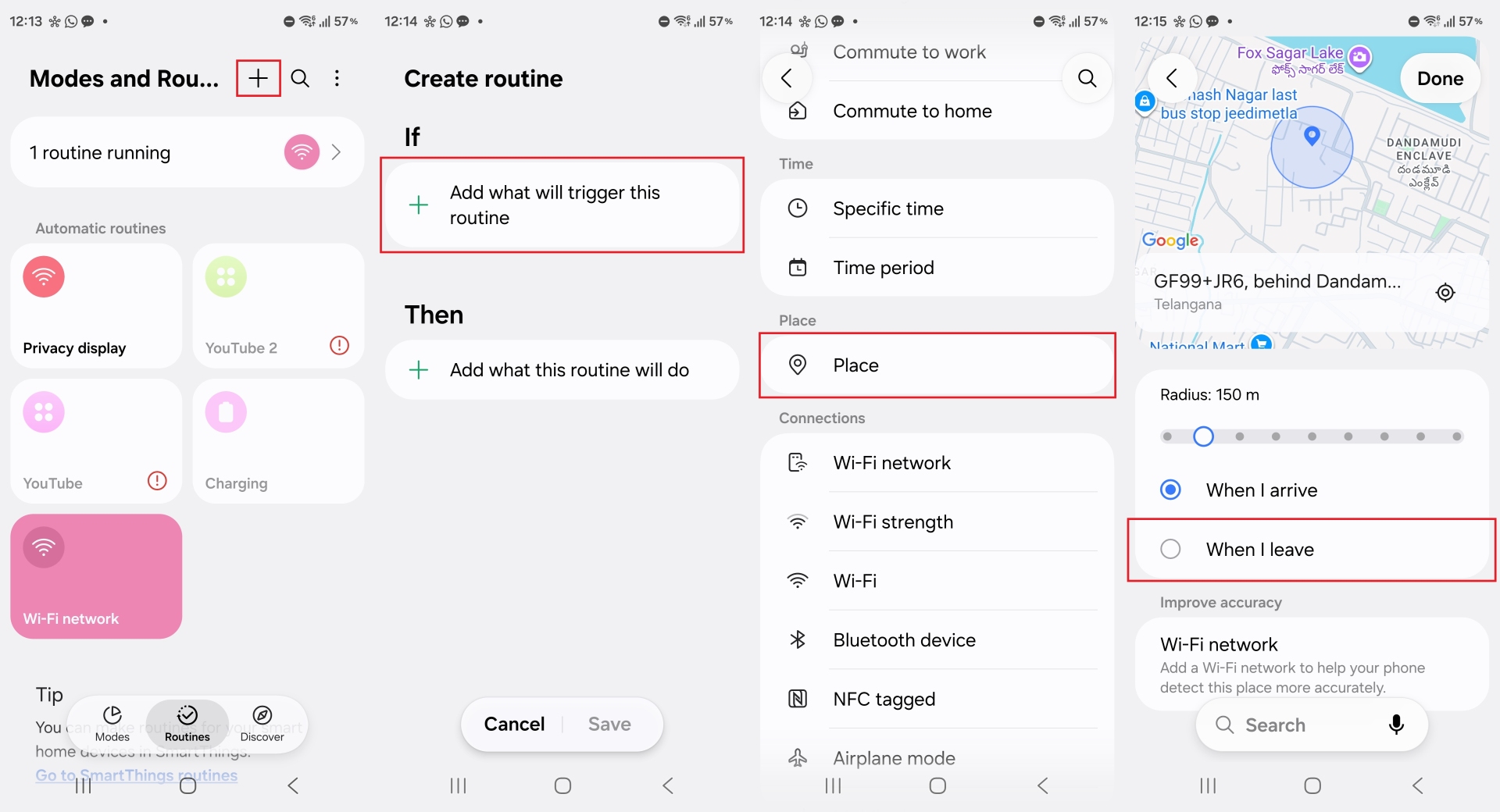
- Open the Modes and Routines app and tap the Routines tab.
- Tap the + button to create a new routine.
- Under If, tap Add condition and select Place.
- Set your home location and choose When I Leave as the trigger.
Note: You can also set the radius around your house within which this routine will apply. - Tap Done, then under Then, tap Add action.
- Search for Privacy Display and select On.
Note: You can also enable the Maximum privacy protection toggle here if you want the maximum protection. - Tap Done and save the routine.


How to turn on Privacy Display when you disconnect from your home Wi-Fi
You can use your Wi-Fi network as the trigger instead of your physical location, especially if GPS is not always reliable for you indoors.
- In Modes and Routines, create a new routine.
- Under If, select Wi-Fi network as the condition.
- Tap the Add button to choose your home network and set the trigger to Disconnected.
Note: You can select multiple Wi-Fi networks if you have a router with multiple Wi-Fi access points set up. - Under Then, search for Privacy Display and select On.
- Tap Done and save the routine.


How to enable Privacy Display during commuting hours
If your routine is predictable — you commute at roughly the same time each morning and evening — a time-based trigger is the simplest option.
- Create a new routine and set the If condition to Time period.
- Set the time range to cover your typical commute.
Note: You can also select options like Sunrise until sunset or Sunset until next day sunrise. Furthermore, you can set which days of the week or which month of the year the routine is active. - Tap Done, then under Then, tap Add action.
- Search for Privacy Display and select On.


Things to keep in mind
These same routines work for any location or network that you regularly visit or use. Arriving at the office, connecting to a public Wi-Fi network, or reaching any other place where privacy matters — the setup is identical, just with a different location or network as the trigger.
What's more, these routines are just a few ways you can automate Privacy Display. There are many more conditions you can use. For example, when a Bluetooth device (like your Galaxy smartwatch or earbuds) is disconnected from your phone or you get an incoming call.
It's also worth noting that Modes and Routines works independently of the built-in Privacy Display conditions. The two systems do not conflict and your app-based and PIN-based triggers will work alongside any routines you create.
Finally, if you ever want to temporarily override a routine — say you away from home but want Privacy Display off for some reason — you can always toggle it manually from the quick panel. This will not pause the routines you have set up, just ingore them until the set conditions are met again.


Post a Comment